The product title that works on your storefront is not always the title that works in a shopping ad or an AI answer. “The Weekender” might be a lovely name on your site, but a shopping feed needs to say it is a 40L waxed canvas duffel bag.
Many merchants solve this by duplicating products, one for the store and one for each channel. That creates inventory mismatches, split reviews, and messy reporting. This guide shows how to map product data for Google, Shop, and AI channels on Shopify while keeping a single product record. If you are building the catalog first, you can set up your products on Shopify and come back to the mapping steps.
Why One Version of Product Data Falls Short
Each channel reads your product with a different purpose and a different reader in mind.
Storefront copy is written for browsers
On your own site, shoppers already trust the brand. Creative names, story-led descriptions, and lifestyle language can work because the photos and layout carry the context.
Shopping feeds are written for comparison
In a shopping results grid, your listing sits next to competitors. Titles that state product type, key attribute, and size tend to be clearer than brand-led names.
AI channels are written for matching
AI assistants try to match a shopper’s described need to a product. Descriptions that explain use cases, materials, and who the product suits give them more to work with than a short tagline.

Image source: Unsplash.
What Shopify Product Data Mapping Does
Shopify introduced product data mapping by channel in its Fall ’26 Edition, so merchants can customize product data for each sales channel from the admin (Source: Shopify Editions Fall ’26).
Choose a different source for key fields
For Shopify Catalog, which feeds Shop and Shopify’s agentic storefronts, Shopify’s Help Center says you can change the source used for the product title and description. A source can be a product field or a metafield, and text fields can combine sources with entered text or Liquid (Source: Shopify Help Center).
See coverage before you switch
Each mapped field shows how many products actually have a value. If you point the title at a metafield that only 40% of products use, the coverage number tells you before shoppers see gaps.
When the chosen source is empty for a product, Shopify falls back to the field’s default source, so empty metafields do not produce blank listings.
Control the list price
The same page explains that merchants can choose price or compare-at price as the list price for Catalog. The compare-at price is used only when it is higher than the current price.
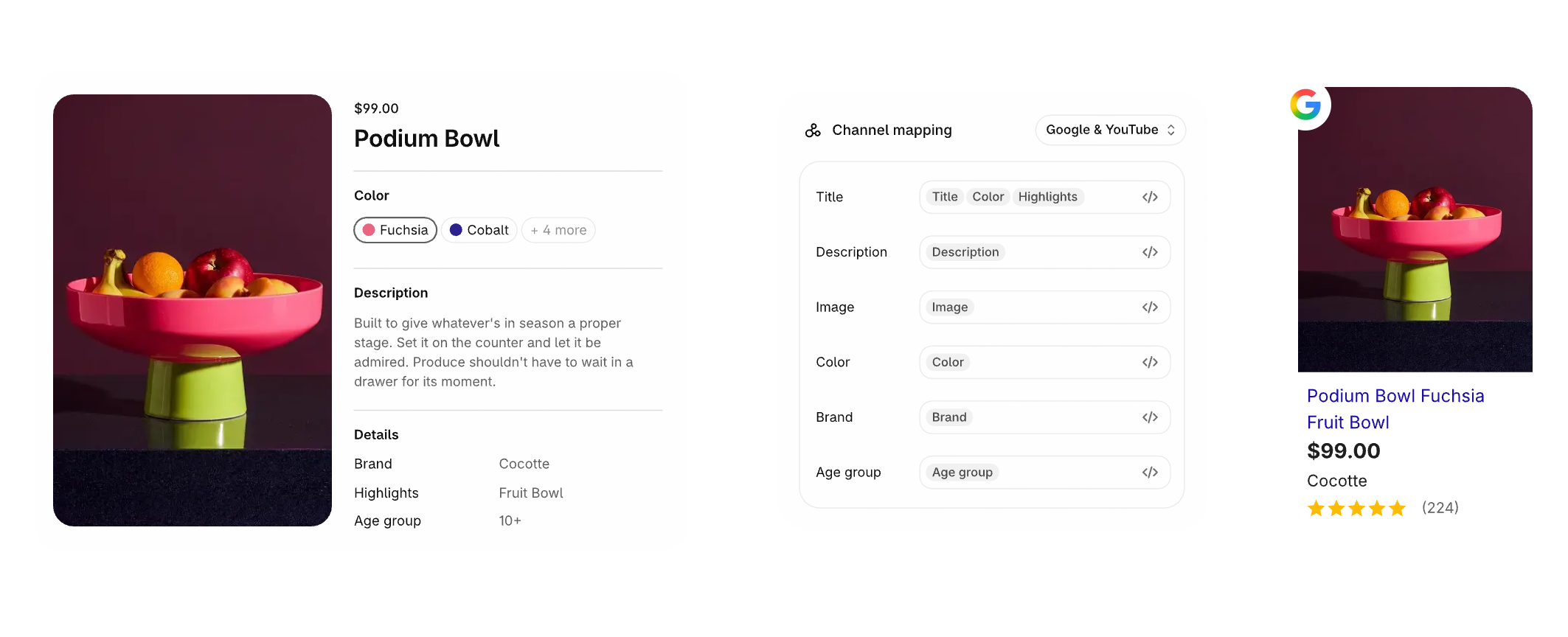
Image source: Shopify Editions Fall ’26.
Planning Your Field Map by Channel
Before changing settings, decide what each channel needs from each field.
| Field | Online store | Shopping feed (Google) | Shop and AI channels |
|---|---|---|---|
| Title | Brand or creative name | Product type + key attribute + size | Clear product type with a distinguishing detail |
| Description | Story and lifestyle | Factual specs first | Use cases, materials, who it suits |
| Price shown | Price with optional compare-at | Current price, sale rules per channel | Price, compare-at as list price if eligible |
| Attributes | Variant options | Color, size, material, identifiers | Same attributes, described in plain words |
Create metafields for channel copy
Add product metafields such as “feed title” and “AI description.” Keeping channel copy in dedicated fields means your storefront title never changes by accident.
You can manage metafields in Shopify admin and fill them through bulk editing or CSV import.
Write a title formula, not one-off titles
A formula keeps hundreds of titles consistent. For example: product type, primary material, capacity or size, color. “Duffel Bag, Waxed Canvas, 40L, Olive” follows that pattern and reads clearly in any results grid.
Keep facts identical across channels
Wording can change by channel. Facts should not. Dimensions, materials, and care details must match everywhere, or shoppers and channels will spot conflicts.
Partnered with Shopify: This guide includes Shopify links for merchants reviewing catalog and sales channel settings.
Setting Up the Mapping Step by Step
The exact screens may change as Shopify updates the feature, so treat this as a workflow rather than a click path.
Start with Shopify Catalog
Shopify’s Help Center describes reaching Catalog mapping from the agentic sales channel area by reviewing product data mapping for Shopify Catalog. Point the title and description at your new metafields, then check coverage.
Map your shopping feed channel
Open the channel mapping for your Google sales channel and apply the feed title formula. Confirm identifiers such as GTIN, brand, and condition are populated for products that need them.
Allow time for changes to apply
Shopify notes that mapping changes are processed with a delay. Make changes well before a promotion starts rather than the night before.
Handling Variants and Grouping
Variant structure often causes more channel problems than titles do.
Separate products that should be one listing
Some stores list each color as its own product for merchandising reasons. For Shopify Catalog, Shopify’s Help Center describes a custom variant grouping option that can group separate products into one listing by title delimiter, metafield, or tag prefix.
Watch for conflicting option combinations
Shopify flags groups for review when two items share the same option combination. Fix those conflicts before relying on grouped listings.
Name options the way shoppers do
Internal option names such as “Clr” or “Sz-EU” confuse shoppers and AI tools. Use plain names such as “Color” and “Size.”

Image source: Unsplash.
Worked Example: One Bag, Three Channels
Here is how a single product can be described differently without changing any facts.
Online store version
Title: The Weekender.
Description: A story-led paragraph about weekend trips, followed by materials and care. This works because the shopper has already chosen to browse your brand and can see the photos, reviews, and size guide on the same page.
Shopping feed version
Title: Duffel Bag, Waxed Canvas, 40L, Olive.
Description: Starts with capacity, dimensions, material, strap type, and laptop sleeve size. A shopper scanning a results grid can tell in a second whether it fits their need, and the listing can be compared with similar bags on equal terms.
Shop and AI channel version
Title: Waxed Canvas Duffel Bag for Weekend Trips, 40L.
Description: Explains who the bag suits, such as travelers who pack for two or three nights and want carry-on friendly dimensions. It names the materials, mentions the separate shoe compartment, and states the return window.
All three versions share the same capacity, materials, dimensions, and price. Only the emphasis changes, which is exactly what channel mapping is meant to support.
Measure whether the change helped
After a few weeks, compare channel performance for mapped products against similar products you have not yet changed. Look at click-through and conversion by channel rather than total store sales, since seasonal traffic shifts can hide the effect of a title change.
Mapping Mistakes to Avoid
Channel mapping is powerful, which also makes it easy to misuse.
Stuffing keywords into feed titles
Long titles packed with search terms can look like spam and may break channel rules. One product type and a few real attributes are enough.
Promising different things in different places
If your AI description says “waterproof” while your store says “water-resistant,” you create a trust and returns problem. Keep claims identical.
Mapping once and forgetting
New products need the same metafields. Add channel fields to your product creation checklist so coverage does not drop over time.
Channel Mapping Checklist
Use this checklist before a major campaign or catalog update.
- Create metafields for channel titles and AI-ready descriptions.
- Define one title formula per product category.
- Check field coverage in Shopify Catalog mapping.
- Confirm compare-at prices are accurate before sharing them as list prices.
- Review variant grouping and resolve flagged conflicts.
- Search for your top products in each channel and confirm the new titles appear.
- Add channel fields to your new-product checklist.
When the checklist is complete, review your sales channels in Shopify once more to confirm everything is syncing.
Final Thoughts
To map product data for Google, Shop, and AI channels on Shopify, keep one product record and change only the fields each channel reads. Store channel copy in metafields, use a clear title formula, keep facts identical, and check coverage before switching sources. With Shopify’s channel mapping, each surface can get the version of your product it understands best without duplicate listings.
FAQ
Do I need duplicate products for different sales channels?
Usually not. Channel mapping lets you send different titles or descriptions from metafields while keeping one product, one inventory count, and one set of reviews.
Can I change the product category for Shopify Catalog?
Shopify’s Help Center states that product category cannot be mapped for Shopify Catalog. Set the category on the product itself.
What happens if a mapped metafield is empty?
Shopify falls back to the field’s default source for that product, so the listing still shows data. Fill gaps to keep channel copy consistent.
We only recommend tools we’ve tested and trust. This post may include affiliate links, meaning we may earn a commission if you choose to purchase – at no extra cost to you.