It’s December 18. Your Shopify store has 120 unread customer support messages, and Christmas is approaching.
Most customers are asking the same questions: “Where is my order?” “Will my package arrive before Christmas?” and “Can I return this gift if it doesn’t fit?”
This is a hypothetical scenario, but it illustrates a familiar holiday problem. As orders increase, support teams often spend more time answering questions that could have been addressed before customers needed to ask.
The solution isn’t necessarily hiring more agents or adding another chatbot. It’s identifying where important information is missing from the customer journey.
To reduce Shopify support tickets, merchants can make shipping expectations clearer, provide reliable tracking updates, explain return policies, and offer self-service options at the right moments.
With Shopify, many of these improvements can begin with existing order management, customer notification, and support features.
This guide explains how to prevent common holiday questions before they turn into support tickets, without making it harder for customers to reach your team when they genuinely need help.
Find the Questions Creating the Most Holiday Tickets
Before changing your support workflow, identify which questions customers ask repeatedly and where the information should have appeared.
Group tickets by customer intent
Start by reviewing recent conversations from email, live chat, social media, and other customer support channels.
Group messages by the problem customers are trying to solve, rather than simply labeling them all as shipping or order inquiries.
Useful categories include:
- Pre-purchase delivery: Will my order arrive before the holiday?
- Order status: Has my order been shipped?
- Address changes: Can I correct my delivery information?
- Returns: Can the recipient return or exchange a gift?
- Promotions: Why isn’t my discount code working?
- Product information: Is this the correct size or compatible model?
This classification helps you identify whether the underlying issue belongs on a product page, at checkout, in an order notification, or in the post-purchase experience.
Identify when each question appears
Different questions require answers at different stages of the buying journey.
A customer asking about Christmas delivery before checkout needs a realistic shipping estimate. Someone asking about tracking after purchase needs access to their order status.
| Customer Question | Best Prevention Point | Recommended Action |
|---|---|---|
| Will this arrive before Christmas? | Product page and checkout | Display realistic holiday shipping deadlines |
| Where is my order? | Shipping notification and order status page | Provide accessible tracking information |
| Can I change my address? | Order confirmation | Explain how and when to request changes |
| Can I return a gift? | Product page and return policy | Clarify eligibility and return windows |
| Why isn’t my discount working? | Cart and promotion details | Explain minimum spends and exclusions |
The best place to answer a question is usually where the customer first needs that information, not after they open a support conversation.
Prioritize issues by volume and urgency
Not all support categories deserve equal attention.
For example, if 40% of your incoming messages concern shipment tracking, improving order updates may provide more immediate value than redesigning your entire FAQ page.
That percentage is an illustrative example, not an industry benchmark.
Prioritize categories using three factors: how often the question appears, how urgently customers need an answer, and whether your store can prevent the question through clearer information.
Start with the most frequent preventable questions, then review whether their volume changes after your improvements.
Answer Shipping Questions Before Checkout
Holiday delivery uncertainty starts before customers place an order. When shipping deadlines, processing times, and restrictions are unclear, shoppers may contact support simply to determine whether purchasing is worthwhile.
Display realistic holiday order cutoffs
A holiday order cutoff tells customers the latest recommended time to purchase for a specific shipping arrangement.
However, merchants shouldn’t choose an arbitrary date or guarantee arrival without reliable supporting information.
To establish a practical cutoff, review your fulfillment capacity, carrier schedules, destinations, and expected processing delays.
For example, a store might display:
“For the best chance of delivery before December 25, place eligible domestic orders by December 16. Delivery dates are estimates and depend on the selected shipping service.”
This wording is illustrative. The actual date must be calculated from your own operations and carrier information.
Place the cutoff near relevant product information, in your shipping policy, and in seasonal campaign communications.
Don’t rely exclusively on a temporary homepage announcement that shoppers may never see when arriving directly from advertisements or search results.
Separate processing time from delivery time
One common cause of confusion is treating dispatch and delivery as the same event.
Processing time covers the period required to prepare an order for shipment. Carrier transit time begins when the package enters the delivery network.
For example:
- Processing: Typically one to two business days.
- Shipping transit: Estimated three to five business days after dispatch.
- Holiday exception: Additional delays may occur during peak periods.
These timeframes are hypothetical and should not be copied into a live store without verification.
Shopify provides settings for fulfillment times and estimated delivery dates. Review Settings > Shipping and delivery to ensure your configuration reflects your actual operations.
Clear distinctions between these stages can reduce confusion when a customer receives an order confirmation but no shipping confirmation immediately afterward.
Source: Shopify Help Center — Setting up shipping and order fulfillment.
Explain shipping costs and restrictions early
Customers may contact support when promotional shipping promises don’t match what appears at checkout.
For example, a holiday banner might advertise free shipping, but certain destinations, oversized products, or order values may not qualify.
Review shipping rates and promotional terms before publishing your campaign.
Where relevant, explain:
- Minimum purchase requirements for free shipping.
- Eligible delivery destinations.
- Excluded products or shipping methods.
- Possible international customs or import charges.
- Additional shipping costs for oversized items.
Make these conditions available before payment rather than expecting support agents to explain them afterward.
Make Order Tracking Self-Service on Shopify
After checkout, customers increasingly want reassurance that their purchase is progressing. Shopify’s order status and notification features help merchants provide that information without requiring a separate support conversation for every order.
Check the Shopify Order Status Page
Shopify’s Order Status Page allows customers to review their order details and shipment progress after checkout.
When tracking information is available and the carrier is supported, customers may also see delivery updates.
They can access order information through their customer account or links included in order-related notifications. For security, customers without an authenticated session may need to verify their identity before viewing some details.
To review the experience:
- Open Settings > Checkout in Shopify admin.
- Access the checkout and accounts editor for your active configuration.
- Preview the Order Status Page.
- Check that the branding, navigation, and important information are clear.
- Test how a customer reaches the page after receiving a confirmation email.
The Order Status Page should make it obvious where customers can find updates and how they can contact support if an order requires attention.
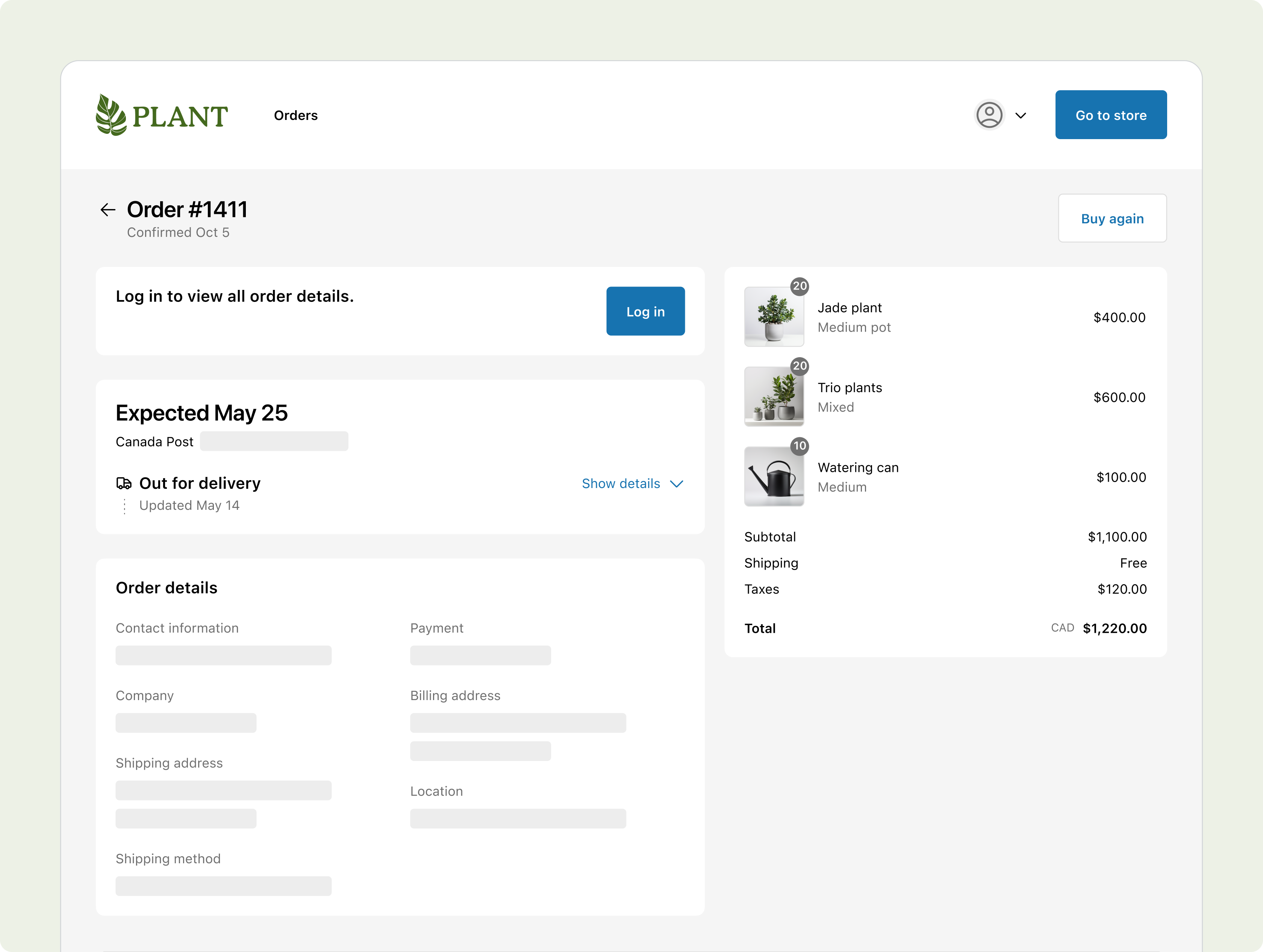
Image source: Shopify Developer Documentation — Customer Accounts.
Add accurate tracking information to fulfillments
An order tracking page is only useful when the fulfillment information is correct.
When you buy an eligible shipping label through Shopify, tracking details can be added to the fulfillment automatically.
If you’re using another carrier or fulfillment service, confirm that tracking numbers and carrier information are being added correctly.
For manually fulfilled orders:
- Open Orders in Shopify admin.
- Select the relevant order.
- Review the fulfillment information.
- Add or update the tracking number and carrier as applicable.
- Confirm that the tracking link leads to the correct shipment.
Don’t mark an order fulfilled just to reassure the customer if the physical fulfillment hasn’t actually happened.
Also remember that a tracking number may exist before the carrier performs its first scan. Explain this distinction when necessary so customers understand why tracking information may not immediately show movement.
Source: Shopify — Order tracking.
Review order and shipping notifications
Shopify can automatically send customer notifications for important events, including order confirmation, shipping confirmation, shipping updates, and refunds.
Open Settings > Notifications > Customer notifications to review supported templates and settings.
Focus on whether each notification answers the customer’s next likely question.
For example:
- Order confirmation: Has my order been received?
- Shipping confirmation: Has my package been dispatched?
- Shipping update: Has my tracking information changed?
- Refund notification: Has my refund been processed?
Where customization is supported, include clear links to the order status page and relevant store policies.
Don’t promise tracking milestones that Shopify or your carrier hasn’t actually reported. Carrier update accuracy and timing vary.
Reduce Repetitive Questions With Shopify Inbox
Even when your storefront provides clear information, some customers will still need help finding it. Shopify Inbox offers ways to answer common questions and organize conversations without requiring support agents to type the same response repeatedly.
Create instant answers for common holiday questions
Shopify Inbox supports instant answers, which present predefined questions and responses inside the store chat experience.
For example, you might create instant answers for:
- What is the holiday shipping deadline?
- How can I track my order?
- Can I change my shipping address?
- What is your holiday return policy?
- Why isn’t my discount code working?
To create one:
- Open Sales channels > Inbox in Shopify admin.
- Go to Chat settings.
- Find the Instant answers section.
- Select Create instant answer.
- Enter a clear customer-facing question.
- Write the answer and include a relevant policy or help link where appropriate.
- Set its visibility and save.
When the Inbox agent isn’t active, customers can select these predefined questions to view answers. When the Inbox agent is active, conversation starters and responses are handled differently.
The built-in Track my order option is available independently of whether the Inbox agent is active.
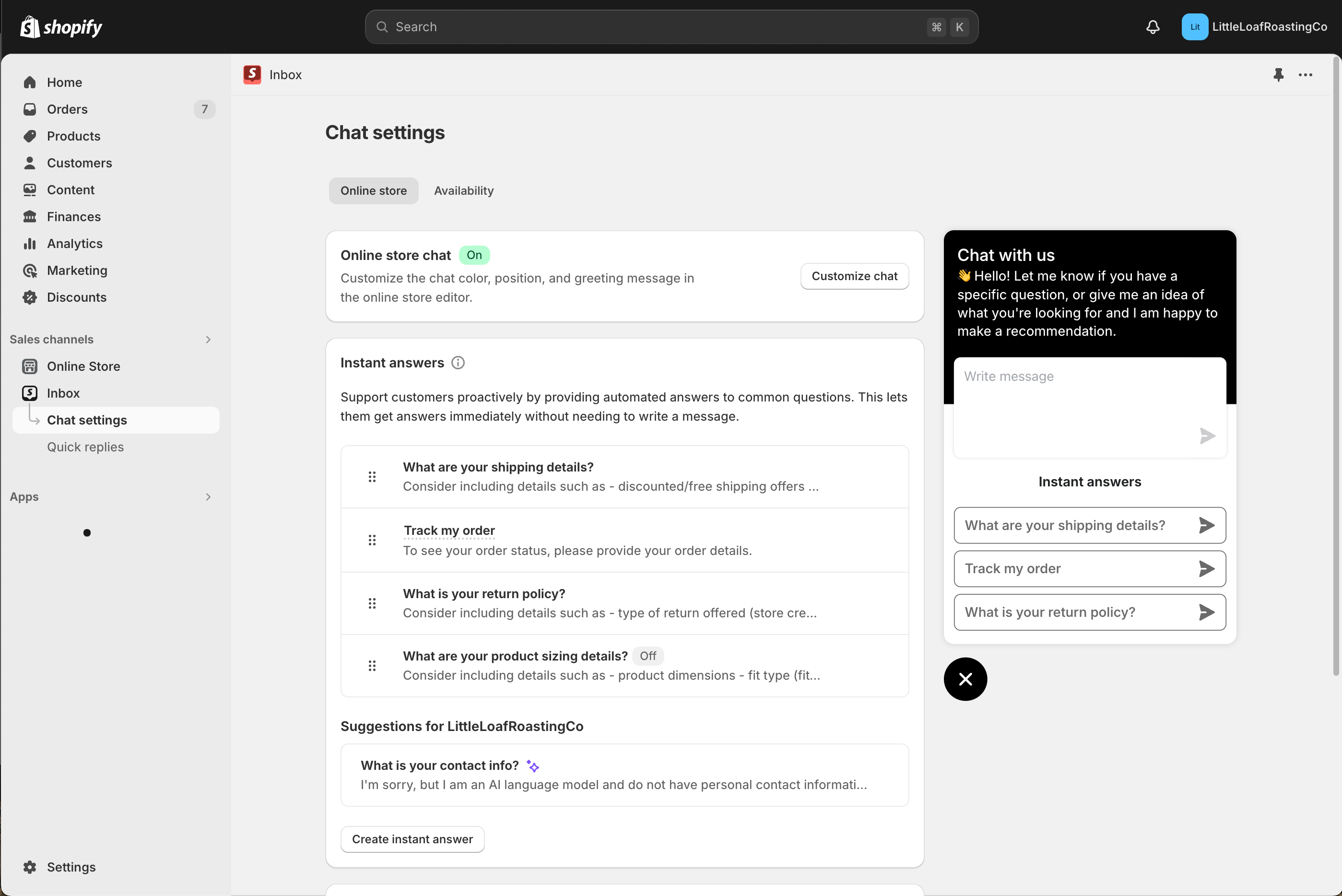
Image source: Shopify Developer Documentation — Shopify Inbox interface.
Source: Shopify — Setting up instant answers.
Configure availability and automated first replies
Holiday customers may send messages outside normal business hours, especially when shopping from different time zones.
Shopify Inbox allows merchants to configure staff availability and automatic first replies for conversations handled by staff.
For example, a first reply might say:
“Thanks for contacting us. Our holiday support team is available Monday–Friday, 9 AM–6 PM. For shipment updates, please check your order status page. We’ll respond as soon as we’re available.”
This is sample wording. Replace the operating hours and response expectations with accurate information for your business.
Availability settings also influence staff handoff behavior when the Inbox agent is enabled, depending on how the agent is configured.
Importantly, automatic first replies are intended for conversations handled by staff; they aren’t the same thing as AI-generated responses or instant answers.
Know when a human support agent is still needed
Automated answers can help with predictable questions, but not every support issue should be handled through a predefined response.
Examples that may require human review include:
- A package marked delivered that the customer can’t locate.
- Multiple failed delivery attempts.
- A damaged or incorrect item.
- A disputed payment or refund.
- An address change after shipment.
- A complex return or an exception to standard policy.
If your store uses the Shopify Inbox agent, review the information it can access and how conversations are handed over to staff.
Don’t assume automated answers are always correct. Update your store policies and review generated responses before relying on them during peak season.
The purpose of automation is to make routine answers easier to find while preserving clear access to human support.
Prevent Returns and Gift-Related Support Confusion
Holiday purchases introduce additional questions because the person buying a product may not be the person using it. Gift recipients might need different sizes, returns, or exchanges after the holiday has passed.
Make seasonal return rules easy to find
Customers shouldn’t have to contact support to understand whether a gift can be returned.
Before the holiday season, review your written return and refund policy, including:
- The return window.
- Whether extended holiday returns are available.
- Product conditions required for returns.
- Final-sale exclusions, where legally permitted.
- Who pays return shipping.
- How refunds and exchanges are handled.
Place links to the policy in your footer, relevant product pages, and other appropriate customer touchpoints.
Shopify’s written refund policy and its configured return rules are related but not identical. Writing a policy doesn’t automatically enforce every condition in your operational workflow.
Review Settings > Policies and confirm that published information matches the rules you’re actually applying.
Enable self-serve returns where appropriate
Shopify supports self-serve return and cancellation requests through customer account experiences when the relevant feature is enabled.
The available setup depends on your store’s configuration.
For stores with an Order actions section in Customer accounts settings, eligible self-serve settings are managed through the checkout and accounts editor. Other stores manage them directly through Customer accounts settings.
To prepare the feature:
- Open Settings > Customer accounts.
- Locate the relevant self-serve return and cancellation settings.
- Enable the request types appropriate for your business.
- Review return and cancellation rules under Settings > Policies.
- Confirm that customers can access their accounts.
- Add a visible account or returns link to the storefront.
- Test the request experience using an eligible order.
Customers must sign in to submit requests, and eligibility depends on the order status and configured rules. Submitting a return request does not necessarily mean it is automatically approved.
Source: Shopify — Self-serve returns and cancellations.
Clarify gift orders, sizing, and product details
Not every holiday support ticket concerns shipping.
Gift shoppers may ask whether a product comes with batteries, which size to choose, whether packaging is included, or whether an accessory fits a specific device.
Review your highest-traffic holiday products and make essential details easy to find.
For example, a clothing product page should explain sizing and fit clearly. An electronics accessory should identify compatible models. A gift set should list exactly which products are included.
These details can reduce uncertainty before purchase and potentially prevent later service issues.
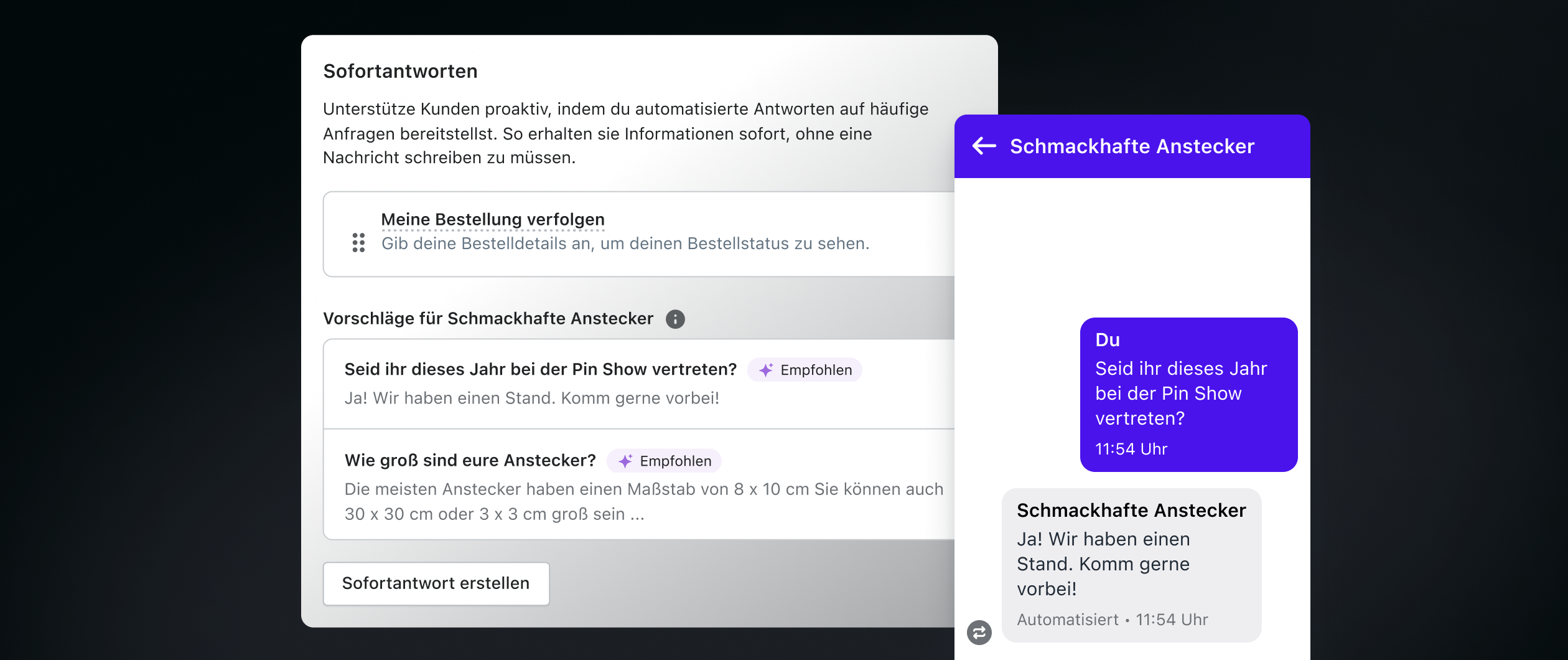
Image source: Shopify Inbox — Official product page. Illustration includes a German-language interface.
Create a Holiday Support Prevention Checklist
A practical holiday support plan should connect customer-facing information, internal operations, and measurable outcomes. Use the following checks before and during your busiest selling period.
Audit customer-facing information before peak week
Review the most important questions customers might ask before buying.
- Confirm that holiday shipping deadlines are accurate.
- Review processing and delivery estimates.
- Check free-shipping qualifications and promotional exclusions.
- Update return and refund policy information.
- Review sizing, compatibility, and product contents.
- Check visible support contact information.
- Verify holiday operating hours.
- Update Shopify Inbox instant answers.
Pay particular attention to product pages and checkout information because many customers arrive directly from advertising campaigns without visiting the homepage.
Test the full post-purchase experience
Place a controlled test order and review what the customer actually receives.
Check each stage:
- Complete checkout and review the order confirmation.
- Open the Order Status Page from the provided link.
- Confirm that order details are correct.
- Add tracking information through the appropriate fulfillment workflow.
- Review the shipping confirmation notification.
- Test the tracking link on mobile.
- Check whether a customer can find return instructions.
- Test available self-serve return or cancellation options.
- Open Shopify Inbox and review instant answers.
- Confirm that customers can still contact support when necessary.
If an essential action is difficult for you to find during testing, customers may experience the same confusion.
Measure repeat ticket categories after launch
To determine whether your changes are helping, monitor both ticket volume and the customer experience.
| Metric | Purpose | How to Use It |
|---|---|---|
| Tickets per 100 orders | Normalizes support volume | Compare periods with different order volumes |
| WISMO tickets | Tracks “Where is my order?” questions | Evaluate tracking and notification clarity |
| Repeated question categories | Identifies missing information | Prioritize storefront and FAQ updates |
| Reopened tickets | Indicates unresolved issues | Review answer quality and follow-up processes |
| Order tracking usage | Measures self-service activity | Assess adoption when reliable data is available |
| First response time | Measures support responsiveness | Monitor service during peak demand |
For example, if a store receives 180 support tickets across 900 orders, its ticket rate is 20 per 100 orders.
If the next comparable period produces 120 tickets across 800 orders, the rate becomes 15 per 100 orders.
These are hypothetical calculations, not industry benchmarks.
The decrease may be encouraging, but investigate whether the mix of customers, products, order issues, and support channels also changed.
Not all measurements are available as dedicated native Shopify reports. Depending on your setup, you may need support conversation tags, exports, additional analytics, or manual classification.
Most importantly, reducing tickets shouldn’t mean hiding contact options or discouraging customers from reporting genuine problems.
A successful support prevention strategy helps customers find answers faster while allowing unresolved issues to reach the right team.
Final Thoughts
Reducing holiday support tickets isn’t about answering customer messages faster. It’s about preventing unnecessary uncertainty throughout the shopping journey.
Start by identifying the questions customers ask most often. Then address those questions where they naturally occur: product pages, shipping information, order confirmations, tracking pages, and return policies.
Shopify’s order status features, customer notifications, Inbox tools, and self-serve return options provide practical ways to support this approach.
With Shopify, merchants can manage important parts of the purchase and post-purchase experience within one commerce platform.
The goal isn’t to eliminate conversations with customers. It’s to make routine answers easier to find, so your support team can focus on situations that genuinely require human assistance.
FAQ
How can I reduce “Where is my order?” tickets on Shopify?
Start by ensuring that fulfillment records contain accurate carrier and tracking information. Shopify’s Order Status Page lets customers review available shipment updates, while shipping notifications can direct them to their tracking details. Test the experience from the customer’s perspective and explain that tracking may not show movement until the carrier scans the package. Clear processing and dispatch expectations also help reduce confusion.
Can Shopify automatically answer common customer questions?
Yes. Shopify Inbox supports instant answers for frequently asked questions, such as holiday shipping deadlines, return policies, and order tracking instructions. It also offers automated first replies for staff-handled conversations and an Inbox agent with additional capabilities where enabled. Merchants should review all automated information for accuracy and maintain a clear path to human support for issues that require investigation.
How can customers request returns without contacting support?
Shopify supports self-serve return and cancellation requests through customer accounts when the relevant features are activated. Customers can sign in and request eligible actions according to the order status and configured rules. Merchants must set up the appropriate customer account access and return policies. A submitted request isn’t necessarily an automatically approved return, and additional review may still be required.
We only recommend tools we’ve tested and trust. This post may include affiliate links, meaning we may earn a commission if you choose to purchase – at no extra cost to you.